
Jobsite photo report sample
A jobsite photo report your client can read.
Two pages, one before-and-after comparison, and captions that explain what is visible. Open the actual ReportMason export or download a copy.
2 pages · 1.2 MB · No email or signup.
Assembled and checked October 2, 2026 · ReportMason 1.1.0 (6)
The complete report
This demonstration uses two NPS photos of bench maintenance at Dupont Circle. We entered demonstration details, labeled the photos Before and After, added captions, and exported the PDF in ReportMason. No invented customer or sign-off.
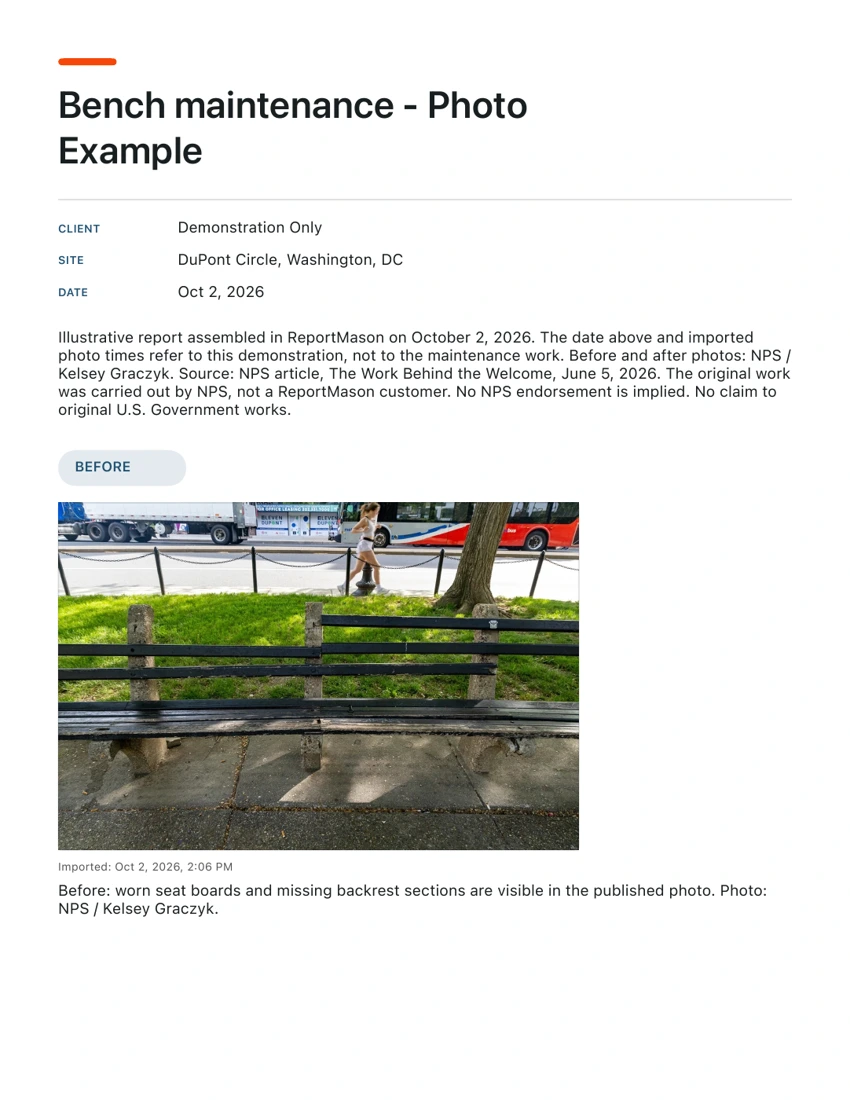
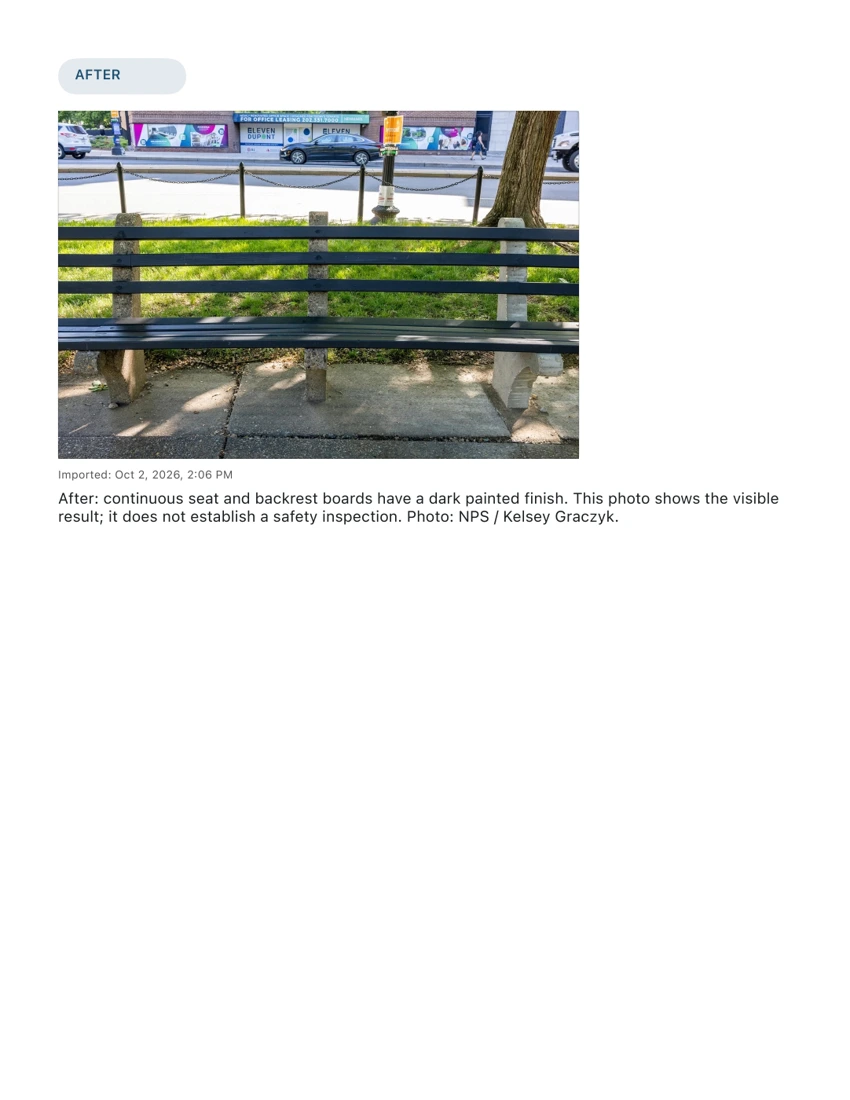
Photos: NPS / Kelsey Graczyk, from The Work Behind the Welcome. No claim to original U.S. Government works. NPS reuse notice. This is an illustrative ReportMason report; the work was carried out by NPS, not a ReportMason customer. No NPS endorsement is implied.
What the fields tell your reader
- Title, client and site
- Identify the visit. Here the client field says Demonstration Only, and the site identifies the source photos.
- Date and photo time
- October 2 is the assembly date for this example. The photos say Imported because their original capture time is unavailable. Neither date establishes when NPS did the work.
- Before and After
- Separate the visible starting condition from the result. There is no During stage in this report because we did not use an in-progress photo.
- Captions
- Explain the visible boards and finish, with a credit for each photo. A caption should add context you know rather than imply a check you did not perform.
Make your own report in ReportMason.
- Create a Photo Report and enter the job details.
- Import or capture the photos you need.
- Tap each photo, set its stage and write a caption.
- Preview every page, then export the PDF.
Try the preview first.
The app is free to download. Creating a report and previewing its PDF do not use an export. Free PDF exports have a limited allowance shown in the app. An optional one-time Lifetime Pro purchase adds unlimited PDF exports.
Download on the App StoreHow was this sample checked?
Created in a fresh iPhone 17 Pro simulator with ReportMason 1.1.0 (6) on iOS 26.5, through the ordinary free export path. Both exported pages were rendered and inspected: photos upright, complete captions, no blank pages or clipped text. The downloadable PDF is unchanged from the App output.
PDF metadata contains creation/modification dates and an iOS PDF producer. No author or personal contact fields were found. The source inputs had no EXIF capture time or GPS. This example is not a general metadata-cleaning guarantee.
This was a local source build, not a signed App Store installation or a physical-device test. Camera, iPad, signatures, purchases and every possible report length were not tested here.