
How to Check a Redacted PDF Before Sharing
Check the exported file, not just the editor. Search for a known removed term, try selecting or copying near the covered area, and reopen the copy in another PDF reader. Review visible content and hidden information separately.
Start with the file you will send
A covered area is a reason to check, not proof of removal. If a detail you meant to remove is still visible, searchable or copyable, stop and export a new copy. No single search or copy test proves that every kind of hidden information is gone.
Keep the original apart from the export. If you still need to make the redactions, follow the iPhone workflow first.
Try the three sample files
This one-page service note uses fictional details: jordan.avery@example.com and +1 (202) 555-0146. The task is to remove the email and phone while keeping the name and work summary readable.
- Open the original — the starting document with both details visible.
- Open the overlay-only copy — a teaching copy with rectangles drawn over the details. Its text layer still contains them.
- Open the actual export — the separate copy exported by OfflinePDF. Download the same export.
The original and overlay-only copy were created for this demonstration. The exported copy came from the actual Mac app; it was not drawn or generated for the website.
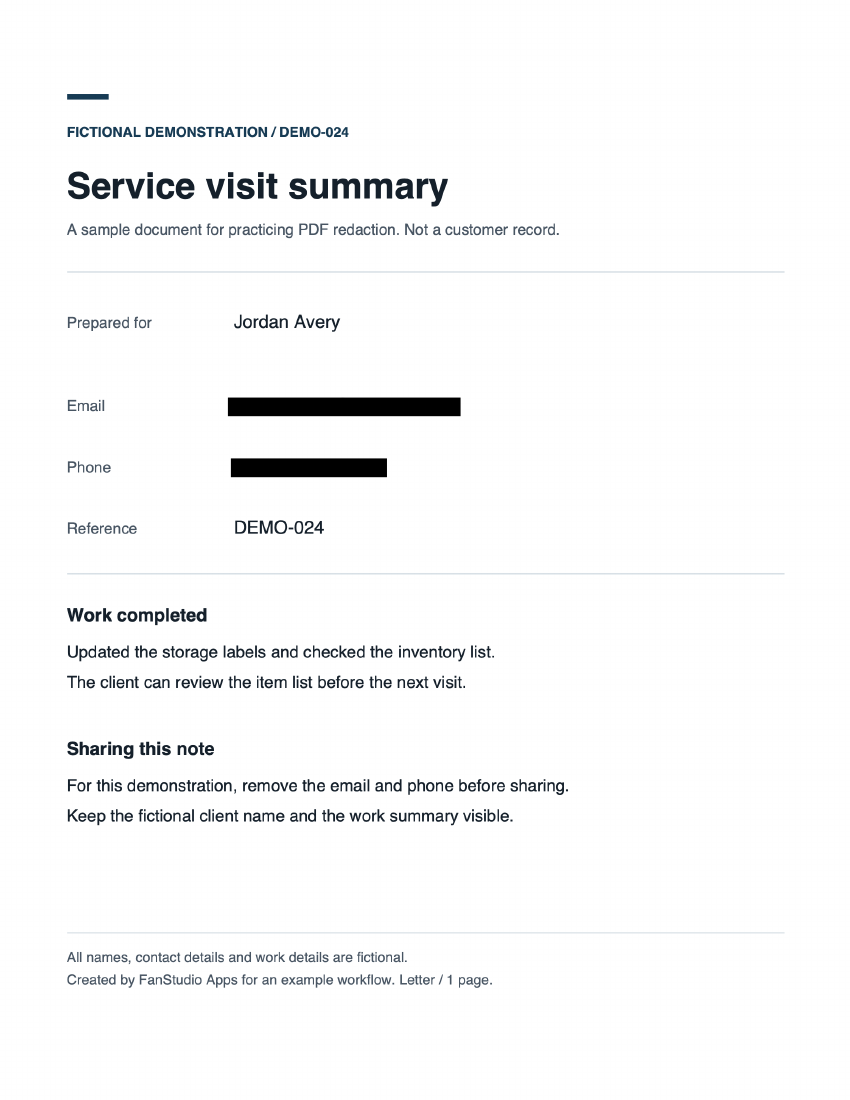
Check the exported copy
Use a known term from the original. A useful control is to search for an unredacted word, such as storage, too. If that also cannot be found, the reader may not be searching the page content.
| Check | Observed result | What it cannot establish |
|---|---|---|
| Search the email and phone | Preview found the email in the overlay-only copy. Neither known term was found in the actual export. | The export has no text layer. A failed search alone does not tell you whether sensitive pixels remain. |
| Select and copy near a covered area | Two independent text extractors found both terms in the original and overlay copy. Both returned zero text characters from the export. A Preview copy attempt did not yield document text. | This does not cover every reader, OCR system or recovery technique. Some readers recognize visible words from page images. |
| Open and inspect the copy in another reader | Preview opened the App export. The email and phone were covered; the name and work summary remained readable. All three files kept one Letter-sized page. | Checking one page does not replace reviewing every page, repeated header, signature or code in your own document. |
| Inspect metadata and other hidden content | Creator and date metadata remain in this export. Metadata cleanup was not selected; the App's metadata and common-hidden-data checks were not run. | The redaction result does not establish metadata cleanup, attachment removal or a full hidden-data inspection. |
Test conditions: OfflinePDF 1.6.4/build 30, local Mac build; macOS 26.6.2, Preview, pypdf and pdfplumber. One fictional PDF. This is not an iPhone export test or a signed App Store build test.
What the sample shows
The overlay-only copy deliberately keeps the original text under filled rectangles. That is why its email can still be found. It demonstrates one failure mode; it does not mean every PDF with black boxes has recoverable text.
The App export in this example rebuilt the page as an image with the selected areas covered. The visible name and body text stayed readable, but the original searchable text layer did not survive. If your recipient needs search, selectable text, accessibility or form fields, check those requirements before choosing an export mode.
For a scanned page, inspect the image itself. Adding OCR may help you locate information, but recognized text can be incomplete or wrong. Check the full area you intended to remove and the surrounding page at a readable zoom.
If a check fails
- Stop sharing that copy. Note the page and detail that failed.
- Return to the original, review missed areas and use the appropriate redaction export.
- Repeat the checks on the new file. Confirm the filename and destination before you attach or upload it.
If the output loses features you need, or your document requires a more thorough inspection than your current tool provides, use a tool suited to those requirements before sending it.
Try the workflow with a fictional file
Start with the sample original rather than a private document. OfflinePDF lets you review findings and draft redactions; check the in-app free and Pro boundaries before creating an export.
FAQ
Does a black box prove that text was removed?
No. In the overlay-only sample on this page, the email and phone remain in the text layer under the rectangles. Other PDFs can be structured differently; test the actual exported file.
What if search finds nothing in a scanned PDF?
An image-only PDF may have no searchable text anywhere. Check whether a visible, unredacted word is searchable too. Inspect the page visually; a failed search alone does not establish removal.
Is password protection the same as redaction?
No. A password controls access to a file. It does not remove the information that an authorized reader can see.
Can I use the exported sample as a metadata-cleanup example?
No. Metadata cleanup was not selected in this export. Creator and date fields remain. Review hidden information separately before sharing your own file.
What should I do if a removed detail is still found?
Stop sharing that copy. Return to the original, review the missed content, apply the appropriate redaction export, and repeat the checks on a new copy.