
How I freed 40GB on my iPhone in 20 minutes — without using iCloud
A practical guide to fixing the dreaded “iPhone Storage Almost Full” warning, without buying more iCloud, and without uploading your entire photo library to the cloud.
· ~8 min read
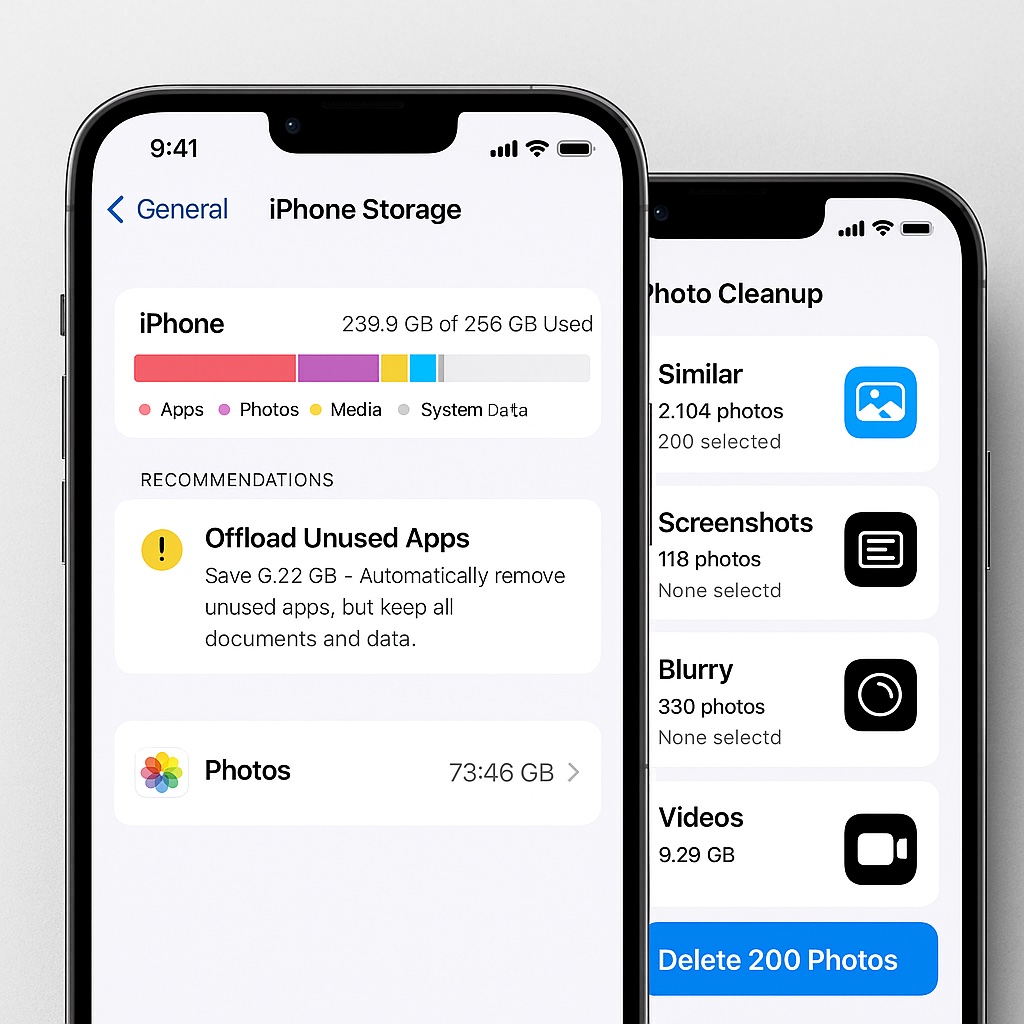
For a solid six months my iPhone was basically yelling at me: “Storage Almost Full.”
Did I fix it? Of course not.
I did what most people do:
- Deleted a few random photos.
- Offloaded one or two big apps.
- Dismissed the warning.
- Promised myself I’d “clean it up properly this weekend”.
That weekend never came.
Eventually things got bad enough that my camera would refuse to record, apps stopped updating, and even downloading a file in Safari felt like playing storage roulette.
So I finally sat down and forced myself to solve it properly — without:
- buying more iCloud storage,
- uploading my whole library to a “magic” cleaner app, or
- spending hours manually scrolling through 30,000 photos.
In this post I’ll walk through exactly how I freed around 40GB in about 20 minutes, using a simple, repeatable workflow and one small offline utility I built for myself: Photo Space Saver.
Step 0: Start with a quick storage map
Before you delete anything, you need a map of where your storage is actually going.
On iPhone, go to:
- Settings → General → iPhone Storage
- Wait a few seconds for the bar chart to finish calculating.
- Look at the big colored bar and the list of apps below.
Most people discover two things:
- Photos & videos are monsters. Especially 4K videos, slow-mo, screen recordings, and Live Photos.
- Some apps quietly hoard data. Social apps, offline maps, streaming apps, and “Documents & Data”.
You don’t need to obsess over every megabyte. You’re looking for the big rocks — the stuff that’s taking up gigabytes, not megabytes.
As a rule of thumb: anything above 1–2GB deserves a closer look.
Step 1: Remove the obvious heavy hitters (5–10 minutes)
Start with the easy wins. These usually live in apps and offline downloads you forgot about.
1.1 Delete or offload unused apps
Scroll down the iPhone Storage list and look for:
- Apps you haven’t opened in months.
- Games you finished or don’t play anymore.
- One-off editing apps you tried once and never used again.
For each one:
- Delete App if you’re sure you don’t need it.
- Offload App if you might come back later, but don’t need it installed right now.
Offloading keeps the app’s data, but removes the app itself. When you reinstall from the App Store, your stuff is still there.
If you have a lot of games or creativity apps, it’s not hard to free a few gigabytes just by doing this.
1.2 Clear obvious downloads and offline content
Next, check apps that like to cache or download content:
- Video apps (Netflix, YouTube, etc.) — delete old offline episodes or movies.
- Music / podcast apps — remove offline playlists or shows you’ve already listened to.
- Map apps — clear offline map regions you don’t use anymore.
These are single-tap deletes that often free hundreds of megabytes at a time.
Step 2: Attack big videos before tiny photos
Once the obvious apps are handled, the real monsters are usually videos.
In the Photos app:
- Go to the Albums tab.
- Scroll down to Media Types.
- Tap on Videos, Slow-mo, and Screen Recordings.
Look for:
- Old screen recordings you don’t need anymore.
- Test clips or accidental videos.
- Raw footage for projects you’ve already exported or posted.
Deleting just 5–10 useless videos can free more space than deleting hundreds of regular photos.
If you’re nervous, you can always Airdrop important clips to a Mac or back them up to an external drive first. The goal here is to remove obviously disposable video, not your favorite memories.
Step 3: Deal with photo chaos without going insane
This is where most people give up.
You open Photos, see 30,000+ items, and your brain goes: “Nope. Too hard. Maybe later.”
The trick is to avoid chasing “photo inbox zero”. You don’t need to review every single image. You just need to remove the obviously useless ones:
- Completely blurry shots.
- Accidental pocket photos.
- Ten nearly identical selfies where only one is good.
- Old screenshots you don’t need anymore.
- Random memes and throwaway images from chat.
This is exactly why I ended up building my own little tool, Photo Space Saver.
It runs entirely on-device, scans your photo library offline, and:
- Groups similar and blurry photos so you can keep the best and delete the rest.
- Surfaces screenshots, screen recordings, and large videos that quietly eat storage.
- Respects favourites, edits, faces, and recent captures when suggesting what to remove.
- Routes deletions through the system Recently Deleted album so you can undo mistakes.
You can absolutely do a manual version of this:
- Scroll through big events (holidays, trips, birthdays).
- For each burst of similar photos, keep one or two and delete the rest.
- Trash obvious fails as you go.
But if you value your time (and sanity), having an offline helper that finds low-value photos for you makes this part much less painful.
Step 4: Use a simple rule for what’s safe to delete
The scariest part of cleaning up storage is the fear of regret: “What if I delete something important?”
Totally normal.
Here’s the rule I use:
If Future Me will never search for this photo, it’s safe to delete.
Ask yourself:
- Is this a unique memory?
- Will I ever look for this specific moment again?
- Would I be genuinely sad if this disappeared?
If the answer is “no” three times in a row, it goes in the bin.
Usually safe to delete:
- Five nearly identical group photos with tiny differences.
- Photos of random products you sent to a friend once.
- Temporary screenshots (verification codes, old tracking numbers).
- Blurry photos you kept “just in case”.
Usually worth keeping or backing up:
- Family gatherings and important events.
- Travel photos from trips that mattered to you.
- Important documents (ideally scanned properly, not just as random photos).
- Anything you’d want to show your future self and say “this was a good day”.
If you’re still nervous, do a backup first — to a Mac, an encrypted drive, or a cloud service you trust — and then clean up more aggressively on your iPhone.
Step 5: Turn it into a tiny monthly habit
You don’t want to do this “big surgery” every few months.
Once you’ve freed a good chunk of storage, keep things under control with a very small monthly routine.
Pick a recurring time:
- First Sunday of every month.
- The last day of each month.
- Or simply whenever you see the storage banner appear.
Then run this quick checklist:
- Open Settings → General → iPhone Storage and check for any app that suddenly exploded in size.
- Open Photos and:
- Empty the Screenshots album.
- Review Screen Recordings and Videos.
- Optionally, run a scan in your cleaner tool (I obviously use Photo Space Saver).
Ten to fifteen minutes, once a month. Think of it as brushing your teeth for your storage.
Why I didn’t just buy more iCloud storage
At this point someone always asks:
“Isn’t it easier to just pay Apple a few dollars a month?”
Sometimes, yes. If you love iCloud and it works for you, that’s great.
But there are a few reasons I try not to rely on it as the only solution:
- Subscriptions add up. It’s “just $0.99” until you have ten different “just $0.99” subscriptions.
- Not everyone has fast, reliable internet. Uploading tens of thousands of photos can take ages.
- Privacy and control matter. I prefer tools where my photos stay on my device whenever possible.
- Clutter doesn’t disappear in the cloud. Duplicates and junk get backed up right along with the good stuff.
I’m not anti-cloud. Backups and collaboration are great use cases. But there’s a big, under-served space for offline tools that run privately on your iPhone and don’t need to phone home to be useful.
That’s the space FanStudio is trying to live in: Smart. Private. Offline.
Quick FAQ
Does this really take only 20 minutes?
The very first cleanup session might take a bit longer if your storage situation is really bad. But if you:
- Remove a few large apps and downloads,
- Delete a handful of useless videos, and
- Bulk-delete obviously bad photos,
it’s realistic to free 10–40GB in a single sitting. The key is to focus on high-impact actions, not perfection.
What if I delete something important by accident?
A few safety nets help:
- Deleted items go to the Recently Deleted album for about 30 days.
- You can back up to a Mac or external drive before a big cleanup.
- You can mark truly important photos as Favourites so you don’t accidentally nuke them when going fast.
Do I need a special app to do this?
You can do a lot manually with just:
- iPhone Storage settings,
- the Photos app, and
- a bit of discipline.
But if you have a huge photo library and not a lot of time, a dedicated offline tool helps a lot.
I built Photo Space Saver for myself for exactly this reason: it runs 100% on-device, doesn’t require an account, doesn’t upload your photos, and helps you bulk-delete blurry, duplicate, and low-value photos in a few minutes.
Wrapping up
If your iPhone has been screaming “Storage Almost Full” at you for months, you don’t have to live like that.
Start with:
- Big apps and offline downloads,
- A quick pass on useless videos, and
- A focused cleanup of obviously bad photos.
Do that once to free a big chunk of space, then turn it into a tiny monthly habit.
And if you’d like a small, offline helper for the messy photo part, you can learn more about Photo Space Saver for iPhone here.